Working, stalled, or waiting on you?
You push a dozen threads forward a day. Minion Monitoring keeps all of them on one screen, so you can see which ones are moving, which ones stopped, and which ones are waiting on you.
- waiting on you
- working · 7m 44s
- stalled · 2 hr
- done
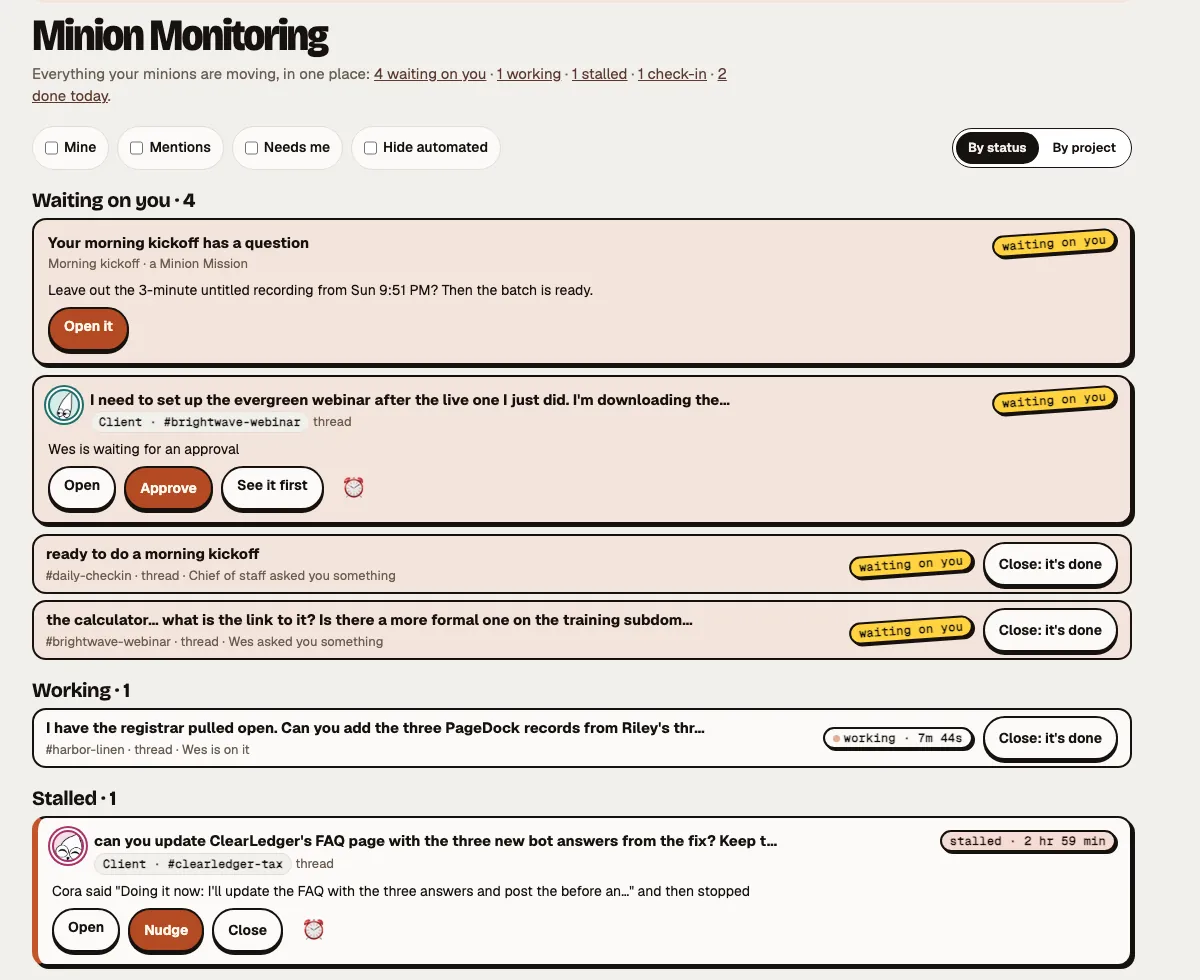
Everything your minions are moving, in one place.
Each thread and task carries its live status everywhere it's listed: in the channel list, the thread, the task, Today and here.
- Waiting on you
Your move
An approval, a question, a task in review, or a minion asking you something. The question shows right on the row, with Approve, Open and See it first.
- Working
A live timer
"working · 7m 44s", ticking. You can see it's still going without opening the thread.
- Stalled
Caught, then nudged
A minion said "on it" and nothing followed: the first nudge is automatic, and the same stall is never nudged twice. A failed or frozen run waits for you, and Nudge asks it to finish or say plainly what's blocking it.
- Check-ins
Offers to push it forward
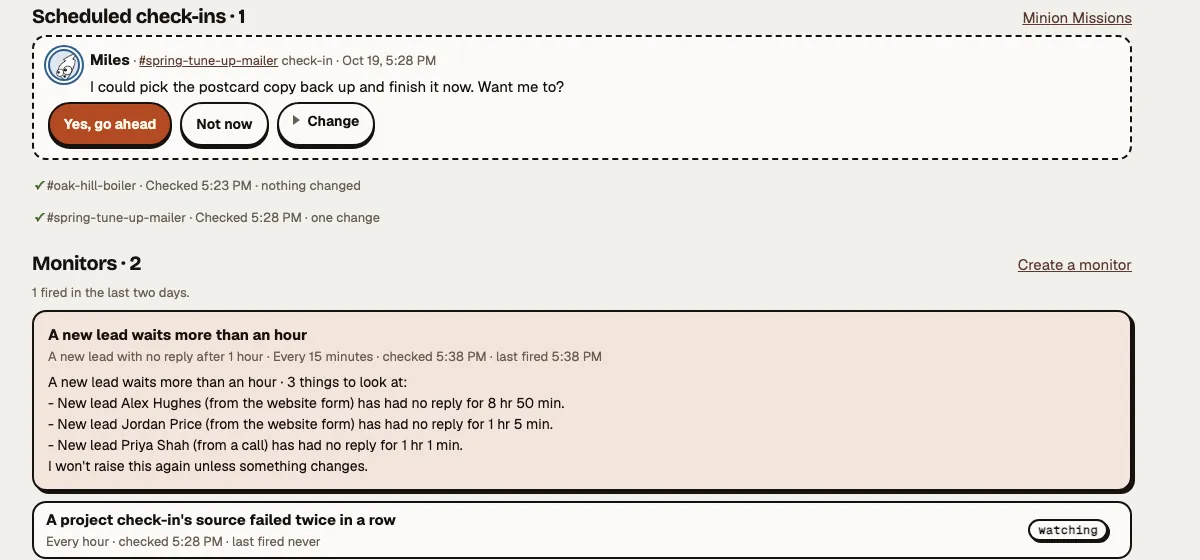
"I could pick the FAQ update back up and finish it. Want me to?" Yes, Not now, or Change it in your own words.
- Done today
Closes itself
A task made from a thread closes when the work is done. Or press "Close: it's done".
- Big jobs
Big jobs get one card
A job with several parts shows as one card that updates in place: a one-line headline, a face per part with its status, then what needs you, what's stuck and what's done. The same recap lands in the chat where you asked.
Nothing gets silently stuck.
Nothing gets silently stuck: every stalled job shows why, who needs to act, and one button to unstick it.
- Why it stopped, in plain words: a sign-in expired, an answer is missing, an approval is waiting.
- Who needs to act: you, a teammate, or the minion itself.
- One button to unstick it: Reconnect, Answer, Approve or Nudge.
- Blog post · MilesWhy: the website sign-in expired · Who: you
- Proposal follow-ups · OttoWhy: 4 emails wait for your yes · Who: you
- Supplier comparison · ResearcherWhy: no progress for 3 hours · Who: the minion
Tasks the way you already work.
- Priority
What matters first
Give each task a priority and sort by it.
- Projects
Grouped by client or project
Every task belongs somewhere, and the board groups by it.
- List view
A plain list, too
Switch from the board to a list when you just want to work down it.
- Press C
Quick add
Press C anywhere to add a task without leaving what you're doing.
- Subtasks
Big jobs, broken down
Split a task into steps, each with its own owner.
Approve, nudge, close. Back to your day.
- Turn any thread into a task. Pick who owns it and who answers for it. It links back to the thread and shows its live status.
- Filters that stay put: Mine, Mentions, Needs me, Hide automated. Remembered for you.
- Remind me later: in 3 hours, tomorrow morning or next week.
- By status or by project. Mark a channel as a project or a client, give it a brief and an owner, and the board groups by it.
- Built for a phone. One column, big buttons.
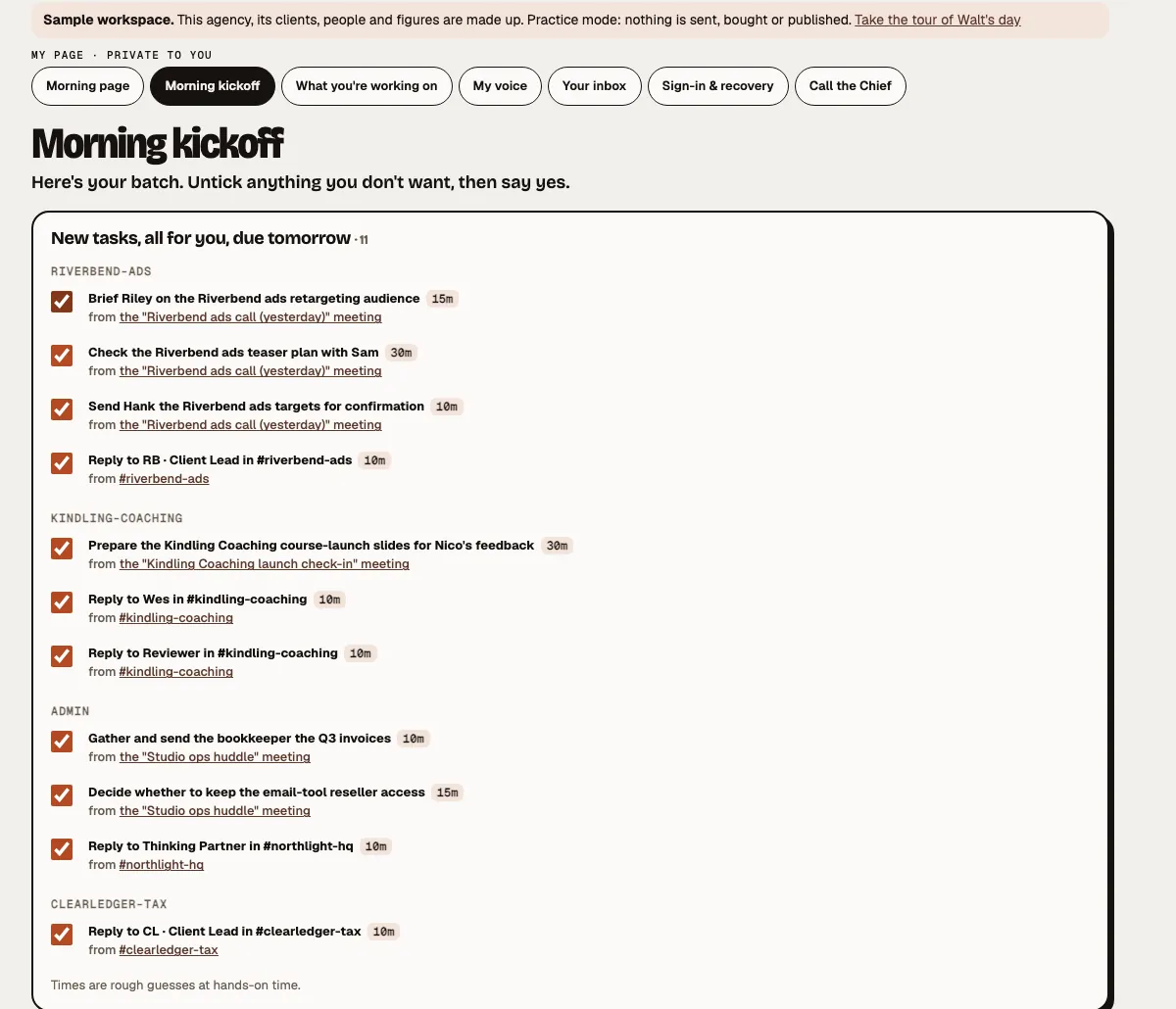
Tomorrow, laid out before you start.
Your minions sweep yesterday's calls, mentions and calendar, and lay out one batch: new tasks per project with a rough time and where each came from, edits to tasks you already have, and today's meetings so you can plan around them.
- If something's unclear, it asks one question first.
- Your tasks due today show alongside, read-only.
- Runs every weekday as a Minion Missions job, or on demand.
Hand your first job to a minion.
Tell us about your business, your goals and what you'd hand off first. We'll show you the team that would take the most off your plate.
Or request access to the live demo (sample data).